


All Document Reader: PDF/Word
4.2168.00 Reviews
App Specs
- Version
- 4.13.1
- Updated On
- License
- Free
- Downloads
- 1,000,000+
- Developer
- Eternal Mobile Labs
- Categories
- Tools
- Platform
- Android
Screenshots
 Analysis by AppCompare
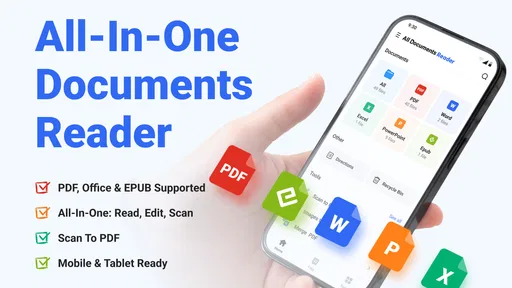
I spent time using All Document Reader: PDF/Word as a practical document tool rather than treating it as just another file viewer. Its appeal is easy to understand: it brings Word files, Excel spreadsheets, EPUB books, and PDFs into one place, while also adding scanning, editing, electronic signatures, and an AI summary feature. That combination makes it useful for people who regularly move between work documents, forms, reading material, and files received on a phone.
My overall impression is positive, but with an important qualification. This is most convincing as a convenient document workspace for everyday tasks, not as a complete replacement for specialist office software or a dedicated e-reader. The app is free to install, carries an Everyone age rating, and comes from Eternal Mobile Labs. Its average rating is 4.0 from around 14 thousand ratings, with more than 1 million installs, so it has clearly found an audience. Still, the real question is whether its broad feature set fits the way you handle documents.
Where the app earns trust and where I stay careful
The first thing I noticed is that the app tries to solve a familiar mobile problem: documents arrive through several channels and in several formats, but the phone often has no single comfortable place to open them. Instead of switching between a PDF viewer, an office suite, a scanner, and a signing tool, I could use one app for the basic flow. That reduced friction when I needed to inspect a file quickly or prepare something for sending.
That convenience should not be confused with unlimited capability. A phone screen remains a difficult place for detailed spreadsheet work, long document formatting, or precise page design. I found the app better suited to reviewing, annotating, scanning, signing, and making modest changes than to building a complex report from scratch. For serious desktop-style editing, a full office suite still has the advantage.
The developer, Eternal Mobile Labs, positions the product in the tools category rather than as a dedicated productivity suite. That description feels fair. It is a utility for handling documents when you need several related actions in one session. I would recommend it to someone who wants a broad toolkit, while warning users with highly specialized requirements not to assume that one mobile app will match every professional alternative.
Its current version is 4.13.1 and it supports Android 8.1 or later. That makes it accessible on many older devices, although the experience will naturally depend on available storage, memory, screen size, and the complexity of the files being opened. Large PDFs, image-heavy documents, or spreadsheets with complicated layouts are the kinds of files I would test before relying on the app for an important deadline.
Reading and finding information without opening several apps
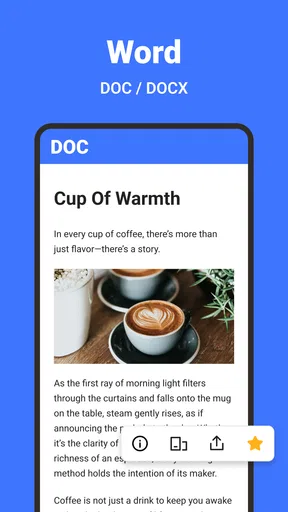
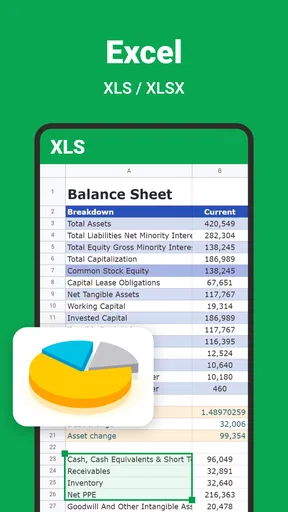
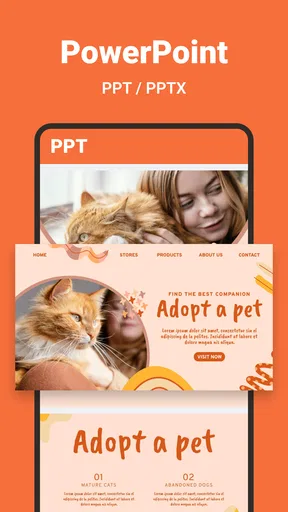
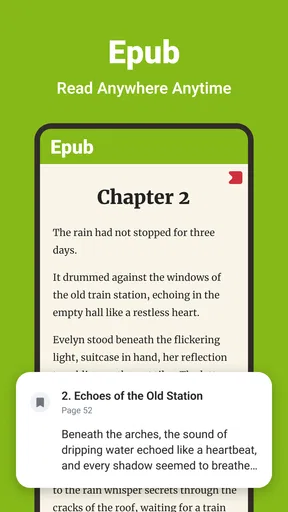
For straightforward reading, the format coverage is the strongest part of the package. I could treat a PDF, Word file, spreadsheet, or EPUB as part of the same mobile workflow instead of thinking about which app should handle each extension. That is particularly useful when a project includes a contract in PDF, notes in Word, figures in Excel, and reference material in EPUB.
Worth Reading Before You Choose

EA SPORTS FC Mobile 26 Is a Bigger Football Game, but It Takes Time

Flipboard Shows What News Apps Must Do Beyond the Feed

Switching to Android Auto Means Rethinking Your Driving Routine

Google Calendar Makes a Crowded Week Easier to Manage

Ludo King Makes the Most of the Minutes Between Plans

Baby Panda World Brings Quick Play to Modern Phones, but Its Game Library Feels Busy
The benefit is less about replacing every specialist reader and more about reducing interruptions. If I receive a document while away from my desk, I can open it immediately, decide whether it needs action, and continue with the next step. That makes the app valuable for commuters, students, freelancers, and anyone who receives attachments while working from a phone.
There is a trade-off, though. A general reader may not provide the same depth of formatting fidelity or navigation polish as the application that created the file. I would use it to check content, search through a document, and handle routine actions. For a final visual inspection of a carefully designed publication or a complicated workbook, I would still compare the result in the original office software when possible.
Scanning paper documents and turning them into a digital task
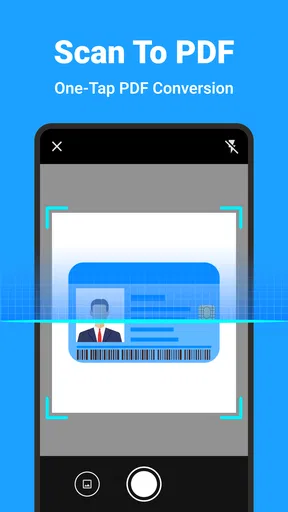
The PDF scanner is more useful when viewed as part of a complete workflow rather than as an isolated camera feature. A realistic example would be receiving a paper form at school, work, or an appointment. I could scan it, review the resulting PDF, add a signature, and send the finished document without first transferring the page to a computer. That short chain is where the app feels most practical.
My advice is to treat scanning as a quality-control step, not a press-once solution. Before sharing the result, I would check every page for cropped edges, shadows, tilted text, and missing fields. A clean scan matters more than the fact that it was created quickly. This is also a moment when I would be especially careful with the document’s contents: identity papers, financial forms, medical records, and signed agreements deserve a deliberate review before being stored or shared.
The scanner is not automatically the best choice for archiving a large collection. If you need consistent naming, extensive organization, or high-volume processing, a dedicated scanning workflow may be more efficient. For occasional paperwork, however, having scanning beside reading and signing is a meaningful advantage.
Editing and signing: useful for completion, not heavy production
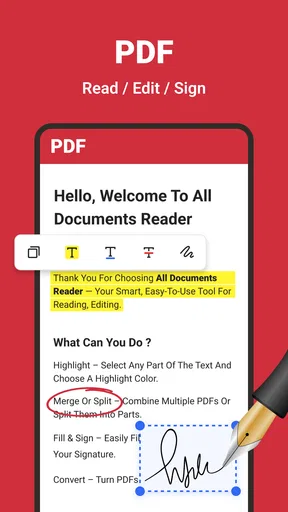
The editing tools make the app more useful than a basic viewer. I found the concept most compelling for small corrections, filling in information, marking a page, or preparing a document for approval. Those are the tasks that often become annoying on a phone when the only available option is to open a file, leave the viewer, and search for another utility.
Electronic signing is similarly practical for routine documents. A user can move from reading to completing a form without rebuilding the workflow in another app. I would still inspect the final file after signing, checking that the signature sits in the intended location and that no text or page was accidentally obscured. For contracts with serious legal or business consequences, I would also follow the recipient’s exact signing requirements rather than assuming that every electronic signature process is interchangeable.
The main limitation is precision. Touch controls are adequate for a signature or a small annotation, but less comfortable for detailed layout work. If you regularly need to reformat lengthy Word documents, adjust spreadsheet formulas, or prepare polished publishing files, I would choose a dedicated office or PDF editor instead. This app is strongest when the task is “finish this document” rather than “produce a complex document from the ground up.”
AI summaries: a shortcut that still needs human checking
The smart AI summary feature is potentially helpful when a document is longer than the time available to read it. I see a sensible use case in screening meeting notes, reports, policies, or reference files before deciding which sections deserve close attention. It can help me form a quick map of a document instead of scrolling through every page without a plan.
I would not use a summary as a substitute for reading important wording. Summaries can compress context, overlook qualifications, or make a detailed statement sound more definite than it is. My preferred workflow is to use the summary to identify relevant sections, then return to the original document and verify names, dates, conditions, figures, and exceptions. That approach keeps the feature useful without handing it more authority than it deserves.
There is also a privacy-sensitive moment whenever a document is processed by an AI feature. I would avoid casually submitting confidential material until I had reviewed the app’s visible disclosures and choices for that function. The presence of an AI tool is not, by itself, a reason to assume how a file is handled. The responsible approach is to look at the information shown in the app and the platform’s permission or privacy controls, then decide whether the convenience is worth it for that particular document.
Permissions, account choices, and handling sensitive files
Trust is especially important for an app that may open personal documents, scan paperwork, and help prepare signed files. I would pay attention during installation and first use to the permissions requested, the explanations shown before access is granted, and whether each permission appears connected to an action I chose. Camera access makes sense when scanning, for example, but I prefer to grant it when needed rather than leave every capability enabled permanently.
I also look for clear control over files: whether I can choose which document to open, whether sharing is initiated by me, and whether the app gives understandable prompts before an action affects a file. These visible choices matter more to me than broad claims about security. A document tool should make it obvious when I am opening, editing, scanning, signing, or sending something.
For sensitive material, I would use a cautious routine. I would open only the needed file, review the output after editing or signing, avoid using AI summarization for confidential content unless the handling terms are clear to me, and remove temporary copies when they are no longer necessary. I would also check the app’s settings and the Android system controls periodically, especially after an update.
The app includes in-app purchases ranging from $3.99 to $94.99 per item. That pricing range means I would inspect the purchase screen carefully before confirming anything, paying attention to what each option unlocks and whether it is a one-time purchase or a recurring arrangement. The free entry point is helpful for testing the workflow, but users should not assume that every advanced action is included without checking the choices presented inside the app.
This is one area where user agency matters. I prefer to try the basic reader and only pay when a feature solves a repeated problem. Someone who only opens an occasional PDF may find the free experience sufficient, while a person who scans, edits, signs, and summarizes documents every week may see more value in an upgrade. Either way, the purchase decision should follow actual use rather than the promise of a long feature list.
How it compares with familiar alternatives
Compared with using separate apps for PDFs, office files, scanning, and signatures, All Document Reader: PDF/Word is more convenient because the workflow is consolidated. That is its clearest advantage. I spend less time deciding which tool should open a file, and I can continue from reading to action with fewer interruptions.
Compared with a full office suite, it is more approachable for quick mobile tasks but less suitable for advanced document creation. A dedicated office app is the better choice for complex formulas, extensive formatting, collaboration-heavy work, or files where layout accuracy is critical. Compared with a specialist PDF editor, this app offers broader format coverage, while the specialist may provide deeper control over PDF structure and professional workflows.
Compared with a dedicated EPUB reader, it is more flexible but potentially less focused for long reading sessions. If your main activity is reading books, a purpose-built e-reader may offer a calmer experience and more reading-oriented controls. If your day involves switching between books, forms, reports, and attachments, the broader approach here makes more sense.
The right choice therefore depends on the kind of inconvenience you want to remove. This app removes the inconvenience of carrying several document utilities. It does not remove the limitations of editing on a small touchscreen, nor does it guarantee that a general-purpose tool will handle every specialist file perfectly.
Who should install it and who should look elsewhere
I think it is a good fit for students who need to read course PDFs, open Word assignments, inspect spreadsheets, and sign or scan occasional forms. It also suits freelancers and small-business users who receive documents away from a desk and want a quick way to review and return them. People who travel frequently may appreciate having several document actions available without preparing a larger mobile setup.
It is less convincing for users whose work depends on advanced spreadsheet modeling, precise publishing layouts, extensive collaboration, or formal document-management controls. I would also hesitate to make it the only tool for highly sensitive records until I had personally reviewed the app’s permission prompts, privacy information, and available settings. That is not a criticism unique to this product; it is simply the standard I apply to any app that may handle confidential files.
One practical tip is to test the complete path with a harmless sample file before using an important document. Open it, try the edit controls, create a scan, inspect a signature placement, and see how the AI summary fits your expectations. This reveals more than testing the reader alone. The app’s value comes from the transitions between features, and those transitions are exactly where a user may encounter friction.
Another useful habit is to keep the original file untouched until the finished copy has been checked. That matters when editing, signing, or converting a scan. A second check can catch a missing page or misplaced mark before the document reaches someone else. I also recommend naming completed files clearly, because a broad document app can quickly become a temporary holding place for many unrelated items.
My cautious verdict after using the full toolkit
All Document Reader: PDF/Word is a sensible free tools app for people who want one mobile workspace for common document jobs. Its combination of format support, scanning, editing, signatures, and AI summaries is more useful in daily life than a simple reader, especially when a task begins with an attachment and ends with a completed form.
I like it most for short, connected workflows: open a file, understand the important parts, make a modest change, sign it, and prepare it for sharing. I like it less as a replacement for specialist software, a serious archive, or an unquestioned route for confidential documents. The broad feature set saves time, but it also makes it important to check permissions, review visible choices, and understand purchases before relying on advanced functions.
The app is free to try, supports Android 8.1 and later, and is rated for Everyone. With version 4.13.1 available from Eternal Mobile Labs, it is worth testing if your phone regularly becomes a temporary office. My recommendation is cautious but clear: install it if convenience across several document formats matters to you, begin with ordinary files, and let your own workflow—not the long feature list—decide whether the advanced tools deserve a place in your routine.
Pros
- Opens PDF
- DOC
- XLS
- PPT
- and other common office formats in one app.
- Built-in search makes it easy to find words or phrases in long documents.
- Supports offline reading after files are saved to the device.
- Recent-files list helps you quickly return to documents you opened before.
- Useful sharing options let you send files to other apps or contacts.
Cons
- Some advanced tools may require a premium upgrade or display advertisements.
- Complex documents may not preserve their original formatting perfectly.
- Large files can take noticeable time to load on older phones.
- The interface may feel crowded because many document tools share one screen.
- It may request broad file-storage access to scan and organize documents.
FAQs for All Document Reader: PDF/Word
What is All Document Reader: PDF/Word, and which file formats does it support?
All Document Reader: PDF/Word is a mobile document-viewing app designed to open and read common office and PDF files from one place. In addition to PDF and Microsoft Word documents, support may include formats such as Excel spreadsheets, PowerPoint presentations, text files, and other office-related extensions, depending on the app version and device. Always check the current store listing before downloading.
Can I use All Document Reader: PDF/Word without an internet connection?
The app is mainly intended for viewing documents already saved on your phone, so many basic reading features can work offline after files have been downloaded or transferred to the device. However, internet access may still be required for advertisements, cloud services, file sharing, updates, or certain online features. Offline compatibility can also vary depending on the document format and the app version installed.
Does All Document Reader: PDF/Word allow users to edit documents?
All Document Reader: PDF/Word is primarily a document reader rather than a complete office editing suite. It is generally suitable for opening, reading, searching, zooming, and organizing files, but advanced editing features such as changing Word text, modifying spreadsheet formulas, or redesigning presentations may be limited or unavailable. Users who need full editing capabilities should consider a dedicated office application.
Is All Document Reader: PDF/Word free to download and use?
The application may be available as a free download, but free versions commonly include advertising, optional premium features, or limitations on specific tools. Depending on the publisher and platform, some functions may require an in-app purchase or subscription. Before installing, review the Google Play Store or Apple App Store description, pricing information, and in-app purchase details to understand the total cost.
Is All Document Reader: PDF/Word safe for opening private documents?
As with any document-management application, users should review the requested permissions and the developer’s privacy policy before opening sensitive files. Avoid granting access that is not necessary for reading documents, and be cautious when using sharing, cloud, or online conversion features. For confidential work, confirm how files are stored and processed, and download the app only from an official app store.


